
If you’ve ever wondered why your website isn’t showing up on Google, or how people are actually finding your site, Google Search Console is the tool that answers both questions — for free. This guide covers exactly what it is, how it works, and how to start using it, even if you’ve never opened it before.
What Is Google Search Console?
Google Search Console (GSC) is a free tool from Google that shows you how your website performs in Google Search. It tells you which pages Google has found and indexed, what search terms are bringing people to your site, how often your site appears in search results, and whether Google has run into any technical problems trying to crawl your pages.
Think of it as a direct line of communication between your website and Google. Without it, you’re guessing why your traffic looks the way it does. With it, you get real data straight from the source.
It’s important to understand what Search Console is not: it doesn’t rank your site higher just by being installed, and it isn’t an SEO tool that fixes problems automatically. It’s a reporting and diagnostic tool — it shows you what’s happening, and it’s up to you to act on that information.
How Does Google Search Console Work?
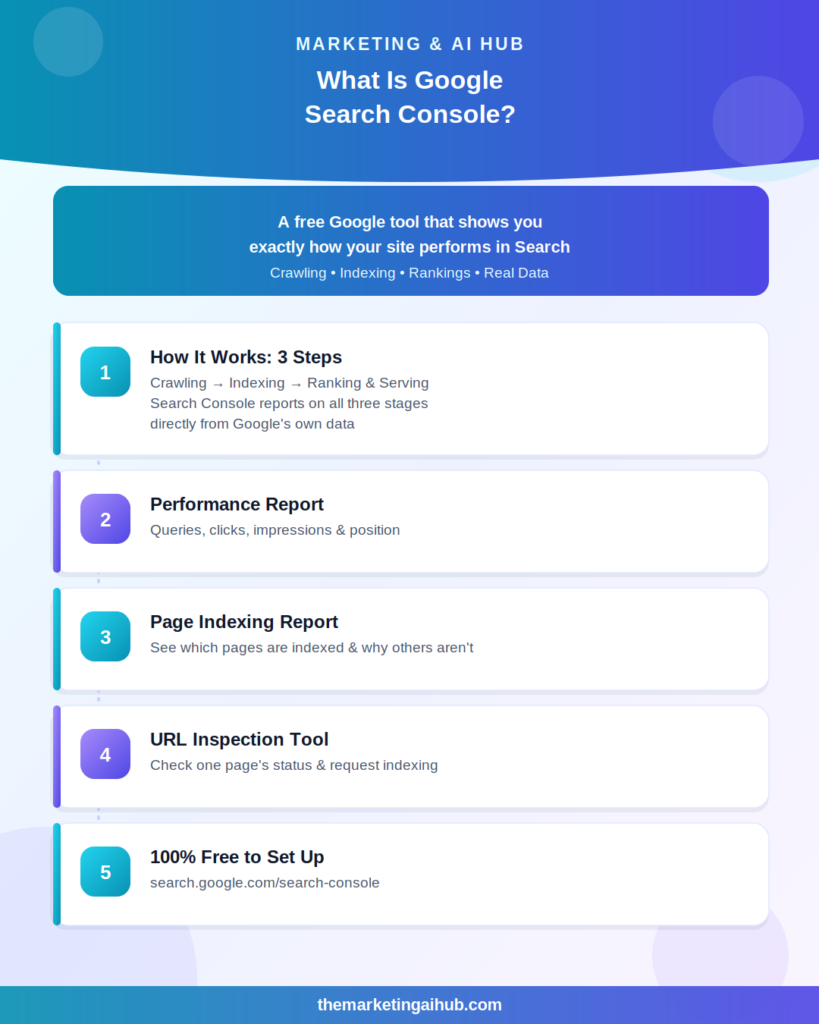
To understand how Search Console works, it helps to understand the three-step process Google uses to get any page into search results:
1. Crawling. Google uses automated programs called crawlers (or “spiders”) that discover pages by following links, reading your sitemap, or finding URLs you’ve submitted directly. Search Console shows you exactly when and how often Google’s crawlers visited your site.
2. Indexing. Once a page is crawled, Google analyzes its content and decides whether to store it in its index — the massive database of pages eligible to appear in search results. Not every crawled page gets indexed; Google may skip pages it considers duplicate, low-value, or blocked. Search Console’s Page Indexing report shows you exactly which of your pages are indexed and which aren’t, along with the reason for any exclusions.
3. Ranking and serving results. When someone searches, Google’s ranking systems decide which indexed pages to show, and in what order, based on hundreds of factors. Search Console shows you which of your pages appeared for which searches, how often, and how many people actually clicked through — this is your Performance report, and it’s usually the most-used part of the tool.
Search Console works by connecting directly to Google’s own data about your site. Once you verify that you own a website (through a meta tag, DNS record, or file upload), Google unlocks this site-specific data that it doesn’t show to anyone else — competitors can’t see your Search Console data, only you can.
The Core Reports You’ll Actually Use
- Performance report — search queries, clicks, impressions, average position, and click-through rate for your site
- Page Indexing report — which pages are indexed, which are excluded, and why
- Sitemaps — where you submit your sitemap so Google can discover your pages faster
- URL Inspection — check the exact status of one specific page, and request indexing for it directly
- Core Web Vitals / Experience reports — page speed and user experience signals Google factors into rankings
- Links report — which sites link to you, and which of your own pages link to each other internally
Why It Matters, Even If You’re Not an SEO Expert
You don’t need to be a technical SEO specialist to get real value from Search Console. Even checking it occasionally answers practical questions like:
- Is my new blog post actually showing up in Google, or is it invisible?
- What are people actually typing into Google before they land on my site?
- Did a recent website change accidentally block Google from crawling a page?
- Is my site loading fast enough on mobile?
For a brand-new website especially, Search Console is the clearest way to see whether Google has even discovered your site yet — waiting and hoping isn’t a strategy, but checking Search Console is.
How to Get Started
- Go to search.google.com/search-console and sign in with a Google account
- Add your website as a property (the simpler URL-prefix method works for most beginners)
- Verify ownership — usually by adding a small HTML tag to your site, or through your domain host if you use the Domain property type
- Submit your sitemap under the Sitemaps section (usually yoursite.com/sitemap.xml)
- Give it a few days, then check back — data doesn’t appear instantly, but within a week or two you’ll start seeing real search performance data
The Bottom Line
Google Search Console is the closest thing to a direct conversation with Google about your website. It won’t fix your SEO for you, but it tells you exactly what’s working, what’s broken, and what Google actually sees when it looks at your site — information you genuinely can’t get anywhere else. If you have a website and haven’t set it up yet, it’s one of the highest-value, zero-cost things you can do this week.
Want help setting up Search Console properly or making sense of your own site’s data? Visit
themarketingaihub.com/contact